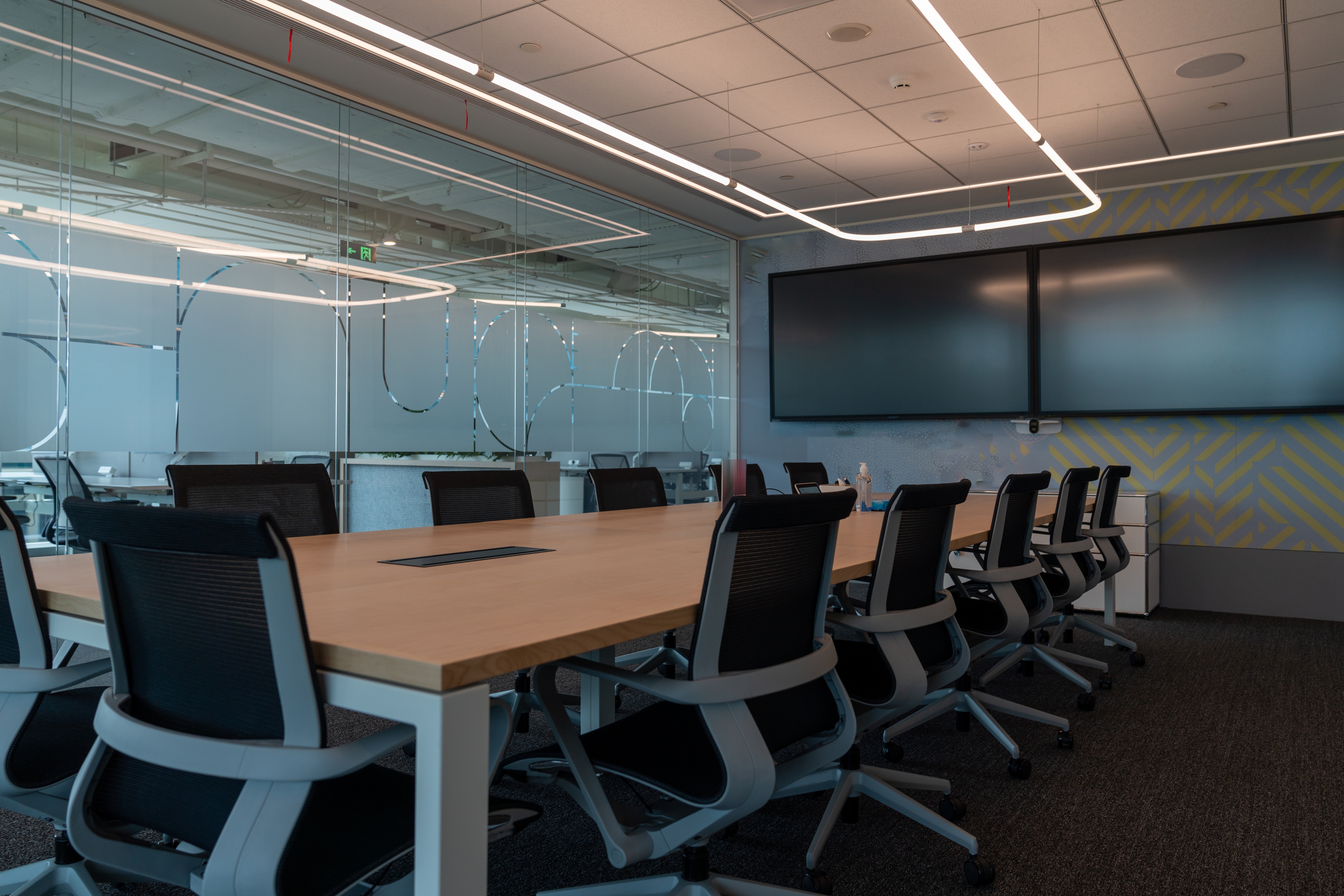
Audio is the number-one complaint in hybrid meetings, and the culprit is almost always the room itself. The microphone sits three feet too far from half the table, the HVAC hums at exactly the frequency that masks consonants, and the glass walls bounce every syllable around for half a second after the speaker finishes. The in-room team carries on without noticing, because the room sounds fine to them. Remote participants hear something closer to a conversation inside a parking garage.
That gap between the in-room experience and the remote experience is the central design challenge of any hybrid meeting space — and the thing most people never think to check before they book one. Hybrid-ready meeting room standards are the minimum AV, acoustic, and lighting specifications a room must meet to deliver equal experience quality to both in-room and remote participants.
If you’re booking meeting rooms in a coworking space or evaluating flex-office options for your team, this checklist will help you tell the difference between a room that works for hybrid meetings and one that just has a screen on the wall.
TL;DR: The five-minute test you can run during any room tour:
- Sit in the far seat and clap once
- Check the camera height by opening a video preview
Key baselines: mics within 3 feet of every seat, reverb that dies instantly, camera at eye level with auto-framing, and lighting that doesn’t shadow faces. At $45/hour median for coworking meeting rooms, you should expect all of them.
1. Microphone Setup: Coverage Distance is Everything
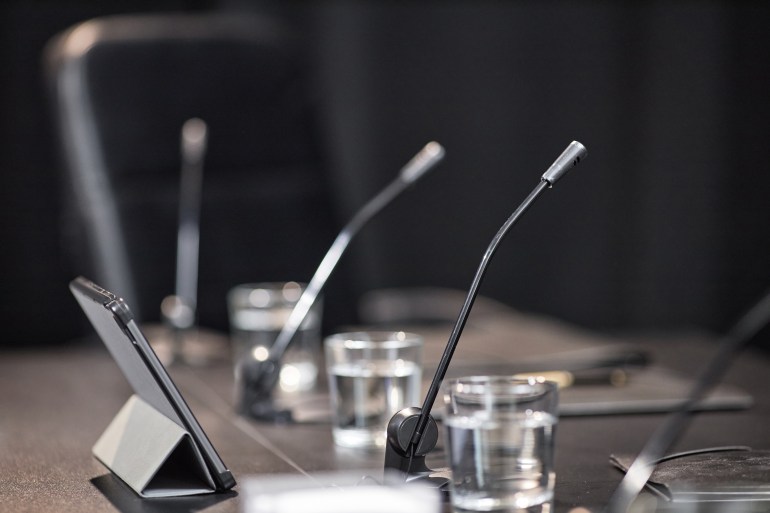 A common mistake is treating microphones as a “check the box” item. The room has a mic; the mic is on; done. But the distance between a microphone and a speaker’s mouth is the single largest variable in remote audio quality. The further the mic sits from participants, the more it picks up room reverb, HVAC noise, and keyboard clatter relative to the human voice.
What to check when you walk in:
- Table microphones: They should sit no more than 1 meter (about 3 feet) from each participant. Cisco’s best-practices guidance notes that close microphone placement captures more direct sound relative to reverberant sound, which is critical for speech intelligibility on the remote end.
- Ceiling microphones: These work well in larger rooms but require careful acoustic treatment to compensate for the greater distance. Most ceiling mic arrays use beamforming technology (a phased array of capsules that electronically steers its pickup toward the active speaker) to reject ambient noise and reverberation.
- Pickup pattern: Omnidirectional mics work for small huddle rooms. For anything larger than 6 seats, directional or beamforming mics dramatically improve clarity by focusing on voices and ignoring background noise.
The real test: Sit in the seat farthest from the microphone and ask someone to call in remotely. If the remote caller says your voice sounds hollow, echoey, or noticeably quieter than people sitting closer to the mic, the coverage isn’t adequate. This takes 90 seconds during a tour and tells you more than any spec sheet will.
2. Camera Placement: Where It Sits Matters More Than What It Costs
The instinct in most rooms is to mount a camera at the top of the display and call it done. But camera height dictates eye-line, and eye-line dictates whether remote participants feel like they’re part of the conversation or watching it from a security camera.
What to check when you walk in:
- Height: The camera lens should sit between 1.2 and 1.9 meters above the finished floor, roughly at the eye level of seated participants. Workspace best-practices guides recommend this range specifically for video-enabled rooms because it produces a natural sight line and minimizes the “looking down a nose” distortion common with overhead mounts. If the camera is mounted above a wall-mounted TV, that’s a red flag, as it’s almost certainly too high.
- Angle: The camera should face participants head-on, not from above or from the side. An off-axis angle of more than 15 degrees creates perspective distortion that makes it hard for remote attendees to read facial expressions.
- Field of view: For small rooms (4–8 people), a wide-angle lens of at least 90 degrees captures the full table without requiring a pan-tilt-zoom (PTZ) setup. Medium and large rooms benefit from a PTZ camera or an AI-powered auto-framing camera that tracks the active speaker.
The question to ask the operator: Does the camera support automatic speaker framing? In 2026, auto-framing and speaker-tracking cameras have moved from nice-to-have to baseline expectation. These systems use onboard AI to automatically crop and zoom to whoever is speaking, giving remote participants a tighter, more natural view of each person rather than a static wide shot of an entire conference table. If the room doesn’t have it, your remote colleagues will spend the whole meeting squinting at a thumbnail of six people from fifteen feet away.
3. Room Acoustics: The Invisible Deal-Breaker
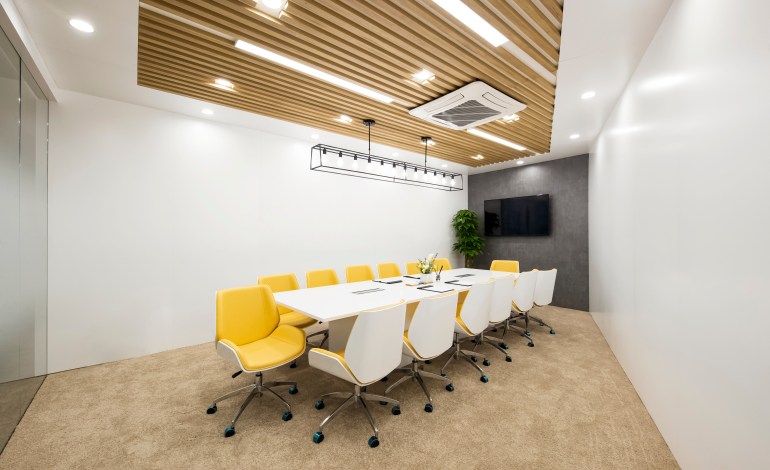 You can have a $2,000 microphone and it won’t save a room with glass walls, hard floors, and parallel reflective surfaces. Bad acoustics are the one variable that no amount of hardware upgrades can fully compensate for, because the problem happens before the sound even reaches the mic.
Here’s the simplest way to think about it: when someone finishes a sentence in a well-treated room, the sound dies almost immediately. In a poorly treated room, the sound keeps bouncing, words blur together, and remote listeners have to strain to keep up. Acoustics professionals measure this as “RT60,” or how long sound lingers after the source stops. The sweet spot for it is under half a second.
What to look for when you walk in:
- Do the clap test. Stand in the center of the room and clap once, hard. If the sound dies almost instantly, the room has decent absorption. If you hear a noticeable ring or flutter (a rapid “tat-tat-tat” echo bouncing between walls) the room will sound muddy to anyone joining remotely.
- Listen to the silence. Ask everyone to stop talking for 10 seconds. Can you hear the air conditioning? Traffic outside? A coffee machine through the wall? If the answer is yes and it’s noticeable, remote participants will hear it too, amplified through the microphone. The best hybrid rooms are quiet enough that you hear almost nothing during those 10 seconds.
- Check what the walls are made of. Look around the room for soft, sound-absorbing materials: fabric-covered wall panels, acoustic tiles on the ceiling, carpet or rugs on the floor. These are the things that soak up sound and prevent it from bouncing. A room with all hard surfaces, such as glass, concrete, bare drywall, or tile floors, is an acoustic problem waiting to happen, no matter what microphone is sitting on the table.
- Notice the neighbors. Is the room next to a busy hallway, a kitchen, or another meeting room? Can you hear conversations from the other side of the wall? Poor sound insulation means your call isn’t private and outside noise bleeds into your meeting. Solid walls with no gaps around the door frame are the minimum; rooms with thin partition walls or floor-to-ceiling glass on multiple sides will almost always leak sound in both directions.
- Glass walls aren’t a dealbreaker, but they need help. Glass-walled meeting rooms are everywhere in modern coworking spaces. They can work for hybrid calls, but only if the room compensates with acoustic panels on the ceiling and at least one solid wall, and ideally uses laminated glass that dampens sound transmission.
4. Lighting: Not Just for Visibility for Camera Quality
Lighting tends to be treated as a comfort issue rather than a technology issue. But in a hybrid meeting, lighting is a camera input. Poor lighting produces grainy, shadowed, or washed-out video and no amount of camera resolution compensates for a badly lit face.
What to look for:
- Faces should be evenly lit, not shadowed. If you can see dark patches under people’s brows or chins on a test video call, the room doesn’t have enough front-facing light. The technical target is 400–500 lux measured at face level, but you don’t need a light meter. Just open your laptop camera and check whether everyone’s face looks clear and naturally colored, with no one sitting in a noticeably darker or brighter spot than anyone else.
- Skin tones should look like skin tones. If people on camera look washed out, slightly green, or oddly yellow, the room is using lights with poor color accuracy. A quick tell: hold a white sheet of paper under the room lights. If it doesn’t look white, the lighting will struggle on camera too.
- No flickering, no strobing. Your eyes might not notice subtle light flicker, but cameras do. If you see faint banding or pulsing on a test video call, the room’s LED drivers need replacing. This is more common than you’d expect in older coworking fit-outs.
- Sunlight is controlled, not blocked. Windows are great for ambience but terrible for cameras. Direct sunlight behind a participant turns them into a silhouette; glare on the display washes out shared content. Look for blinds, shades, or tinted film that can soften daylight without turning the room into a cave.
- Light hits all three layers. The best rooms light participants from the front (so faces are clear), reduce harsh shadows with soft secondary light, and add subtle brightness behind participants so they stand out from the background. Tp get this right, you just need a well-designed ceiling grid of wide-beam LED panels handles all three layers. The giveaway of a poorly lit room is flat, overhead-only lighting that casts shadows downward and makes everyone look tired.
5. Putting It All Together: The Booking Checklist
Whether you’re booking a room by the hour or touring a space you’ll use every week, run through these checks. You don’t need any equipment, just a phone and a remote participant willing to spend five minutes on a test call.
| What to Check | How to Test It | Green Flag | Red Flag |
| Microphone reach | Sit in the seat farthest from the mic and ask the remote caller how you sound | Voice is clear and at the same volume as people closer to the mic | Voice sounds distant, hollow, or noticeably quieter than others |
| Echo and reverb | Clap once, loudly, and listen for how long the sound lingers | Sound dies almost instantly — no audible ring | You can hear the clap bounce around for a full second or more |
| Background noise | Everyone stops talking for 10 seconds while the remote caller listens | Remote caller hears near-silence | Remote caller hears air conditioning hum, hallway chatter, or a low buzz |
| Camera eye-line | Check where the camera lens sits relative to a seated person’s eyes | Camera is roughly at eye level — the video feels like a face-to-face conversation | Camera is mounted high on the wall or ceiling, looking down at the top of people’s heads |
| Auto-framing | Have one person speak, then switch to someone across the table | Camera automatically adjusts to frame whoever is talking | Camera stays locked on a static wide shot regardless of who speaks |
| Lighting on faces | Open the video preview and look at everyone’s faces on screen | Faces are evenly lit, skin tones look natural, no harsh shadows | Dark patches under eyes or chins, faces look washed out or oddly colored |
| Sunlight and glare | Check the display and camera view during afternoon hours | Blinds or tinting keep glare off the screen; no one is backlit into a silhouette | Direct sun washes out the display or turns window-side participants into shadows |
| Screen sharing | Try connecting your own laptop to share a presentation | Connects wirelessly in under 30 seconds, or a cable is readily available | Requires a specific adapter nobody has, or setup takes several minutes of troubleshooting |
| Platform compatibility | Confirm which video platforms the room supports before booking | Room works with Teams, Zoom, and Google Meet | Room is locked to a single platform that doesn’t match yours |
The Market Context
The bar for meeting-room quality in coworking spaces is rising fast. Features that were premium extras a couple of years ago (speaker-tracking cameras, beamforming mic arrays, acoustic treatment built in rather than bolted on) are now baseline expectations for any room marketed as hybrid-ready. When a space advertises itself as equipped for hybrid work, that label should mean the room clears these fundamentals, not just that a webcam is bolted to the wall.
FAQ
If I only have five minutes to check a room, what matters most? Audio is the number-one complaint in hybrid meetings, and it’s the hardest thing to fix after the fact — a poorly treated room defeats even an expensive microphone. Run the clap test for reverb and have someone stop talking for ten seconds so you can hear the noise floor.
Do I really need an auto-framing camera, or is that overkill? For anything larger than a small huddle room, it’s worth it. Without it, remote colleagues get a static wide shot of the whole table and have to squint at a thumbnail of six people from across the room. As of 2026, speaker-tracking cameras have shifted from a premium feature to a baseline expectation, so it’s fair to ask an operator whether the room has one before you book.
Are glass-walled meeting rooms a dealbreaker for hybrid calls? No, but they need help. Glass is everywhere in modern coworking spaces, and a glass room can work if it compensates with acoustic panels on the ceiling and at least one solid wall — laminated glass that dampens sound transmission helps too. A room that’s floor-to-ceiling glass on multiple sides with nothing to absorb sound will leak noise in both directions and sound muddy to remote participants.
Can I fix a bad room myself, or is that on the operator? Some things you can manage, most you can’t. You can close blinds to kill glare, move to a seat closer to the mic, or bring your own laptop for screen sharing. But acoustics, camera placement, and lighting are built into the room — they’re the operator’s responsibility, and they’re exactly what you’re paying the hourly rate for. That’s why touring and testing before you commit matters more than trying to work around problems mid-meeting.
What should I ask the operator before booking, versus what should I test myself? Ask about the things you can’t see in a quick visit: which video platforms the room supports, whether the camera does automatic speaker framing, and whether the walls have acoustic treatment. Test the things you can feel in the room: mic reach from the far seat, reverb with a clap, background noise in ten seconds of silence, and lighting on faces in a video preview. The five-minute test tells you more than any spec sheet.
Does a small huddle room need to meet the same standards? Mostly, with a few relaxations. A small room can use a simpler omnidirectional mic and a wide-angle lens instead of a pan-tilt-zoom or auto-framing setup, since everyone sits close to the equipment. But the acoustic and lighting baselines don’t change — a small room with hard walls and harsh overhead light will still sound and look bad to remote participants.
Is a higher hourly rate a reliable sign of a better hybrid room? Not on its own. Price tracks location and amenities as much as AV quality, and plenty of rooms charge a premium for little more than a screen on the wall. At the roughly $45-per-hour national median for coworking meeting rooms, you have every right to expect the full set of baselines — so judge the room on the checklist, not the sticker price.
The Bottom Line
A hybrid meeting room doesn’t need to look like a broadcast studio. But it does need to meet a small set of technical baselines that most people never think to check. And that os what makes the difference between a productive 30-minute strategy call and a frustrating exercise in “can you hear me now?”
Camera at eye level. Microphones within arm’s reach. Reverb under half a second. Noise floor below a whisper. Light that treats human faces as the most important thing on camera. Get those right, and the room works. Miss any one of them, and everyone on the remote end can tell.
Next time you’re searching for meeting rooms on CoworkingCafe, bring this checklist. Ask about acoustic treatment. Test the mic from the far seat. Check where the camera sits. The room that scores well on these fundamentals is the room your team will actually want to book again.